
Pick the segment
Use an existing segment, or create one from a reference video if it's not listed yet.
Guide
Choose a segment, upload your run video, match the start and end frames, then use the leaderboard and aligned videos to compare lines.
Use an existing segment, or create one from a reference video if it's not listed yet.
Upload ordinary POV footage from an action camera. Extra video before and after the segment helps verification.
The system will help you crop and match your video start and end with the segment reference.
When processing finishes, open the segment leaderboard, watch the aligned video, or generate further run comparisons.

Two videos are played side by side at matching trail positions, so differences are visible even when the original runs were at different speed.
As a rule of thumb, it takes about 10 times the length of the video to get all the results. A 3 minute video may take about 30 minutes to align, verify, and render.
That time goes into camillo's in-house AI models and compute so the system can produce the best alignment results achievable from the footage.
You do not have to wait on the site. You can crop videos, start uploads, and set start and end frames from a computer, tablet, or phone in a few moments. Use the multi uploader to set all your different segment runs going at once.
camillo will process the runs in the background, and your Home page will show you when they are done.
Users have already had successful results with mountain biking, skiing, go-karting, motocross, and automobile racing.
Feel free to try your sport. camillo works best when the footage has clear forward motion through changing scenery, so the visual aligner has distinctive features to follow.
A high POV that shows more of the changing scenery usually works best. A wide camera view and 30fps footage give the aligner the most useful view of the trail or track.
The best results usually come when your POV and light conditions are close to the segment reference run. That said, we are regularly surprised by how good alignments can be even when two runs look quite different.
You can upload and crop your video to the segment on camillo. Regular users often press record on their action cams about 20 seconds before they reach a regular segment, then upload the files directly from their SD card from home.
If your camera angle is very different, or the segment has changed, make a new segment. Other riders and drivers can join that reference instead of forcing unlike footage onto an old one.
A segment is a named stretch of trail with a reference video and agreed start and end points. Every run on the segment is timed against that same start and end, so the leaderboard compares the same section.
A segment can have a map location, comments, a reference run, and user-submitted runs.
Strong segments have start and finish frames that are easy for riders, drivers, and the AI to recognize from normal POV footage.
Pick permanent, all-season visual landmarks that are visible from the camera view: a tree trunk, gate post, trail sign, bridge edge, rock, or other fixed feature that will still make sense in different light and weather.
Set the start frame at the moment the front wheel, ski tips, or front of the vehicle passes the chosen start landmark. Set the finish frame the same way at the finish landmark. Distinctive features ahead in the frame also help camillo and other users confirm the match quickly.
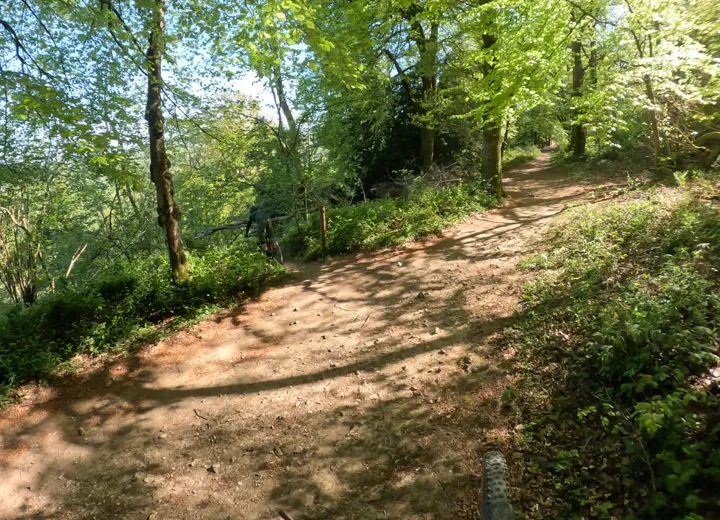
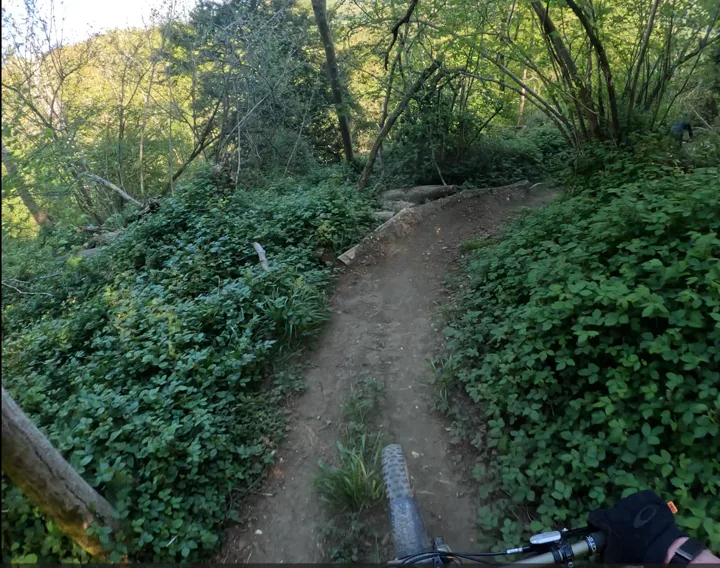
Frame matching is the step where you tell camillo which frame in your video matches the segment start, and which frame matches the segment end. For new segments, you set those frames on the reference video. For existing segments, you match your run to the saved reference frames.
This gives the AI aligner a clean starting point without relying on GPS, timestamps, or a manually pressed lap button.
Extra footage before the start and after the finish helps accuracy. The system treats your start/end selection as a suggestion, widens the window, and uses visual alignment to find the authoritative segment timing.
If a video starts exactly on the segment start or cuts off exactly at the finish, there is less context to prove where the run really began and ended. That can make a result harder to verify, more likely to be flagged, or unsuitable for the leaderboard.
An aligned video is a rendered comparison. Your run appears beside the segment reference, or beside another selected run, with frames synchronized by trail position.
The export is not just two clips started at the same timestamp. It uses the visual match so that the same part of the trail is shown at the same time, even if the riders accelerated, braked, or took different lines.
Open the segment page and use the Compare column to select two runs. Click Run compare, choose the label style, then generate the comparison. If that exact comparison already exists, camillo reuses it; otherwise it queues a new aligned video.
To compare with a video that is not listed yet, upload that video to the same segment first. Once it has processed, it can be selected for comparison.
When an uploaded video contains camera GPS, camillo tries to extract the track and save a telemetry artifact for that run. GPS can help place segments on the map and mark leaderboard rows as GPS verified. GPS verified runs will not have been affected by user editing and are shown with a tick on leaderboards.
Timing still comes from video alignment. GPS is supporting evidence and location data, not the main timing system.
Do not create a public exact-location segment for a sensitive trail. Use one of these options:
When creating a segment, tick Private segment. The segment is only visible to your logged-in account.
If you own an existing segment, open the segment, choose Edit, then tick Private segment and save. Private is different from anonymous: anonymous hides your name, while private limits who can see the segment.